Balancing a Payroll Work File - Selecting a Group
|
Screen ID: Screen Title: Panel ID: |
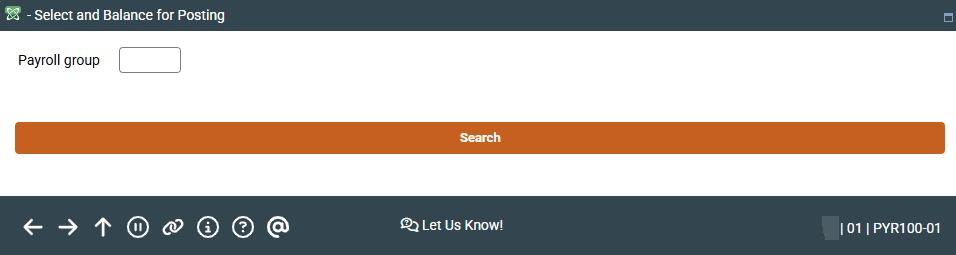
PYR100-01 Payroll Group Selection 1355 |
|
Access this screen by selecting Tool #696 Process/Post Member Payrolls.
Screen Overview
This is the first of four screens used to create a payroll work file and balance member payroll data to a payroll check. Once balancing is complete, the payroll can be posted using these screens.
Enter the Payroll Group ID and press Enter to proceed to the second screen.
-
To look up a Group ID, use Search to display the Payroll Group Inquiry screens.
Entering these screens creates the payroll work file. Maintenance on the payroll member distribution records cannot be done if a work file exists. Therefore, if you enter these screens (even by mistake) and then later wish to perform maintenance using the Work With Member PR Detail feature, the work file must first be deleted.
Remember that if a payroll is received by CU*Answers via tape, the work file has already been created for you. Entering these screens will simply display the resulting work file which was created when the tape was uploaded. If you need to delete the work file, contact a Client Service representative for assistance in recreating the work file from the original tape.
Related Resources
Batch Posting Multiple Payrolls