Check Disbursement Inquiry
| Screen ID: | UCHKREG-01 | 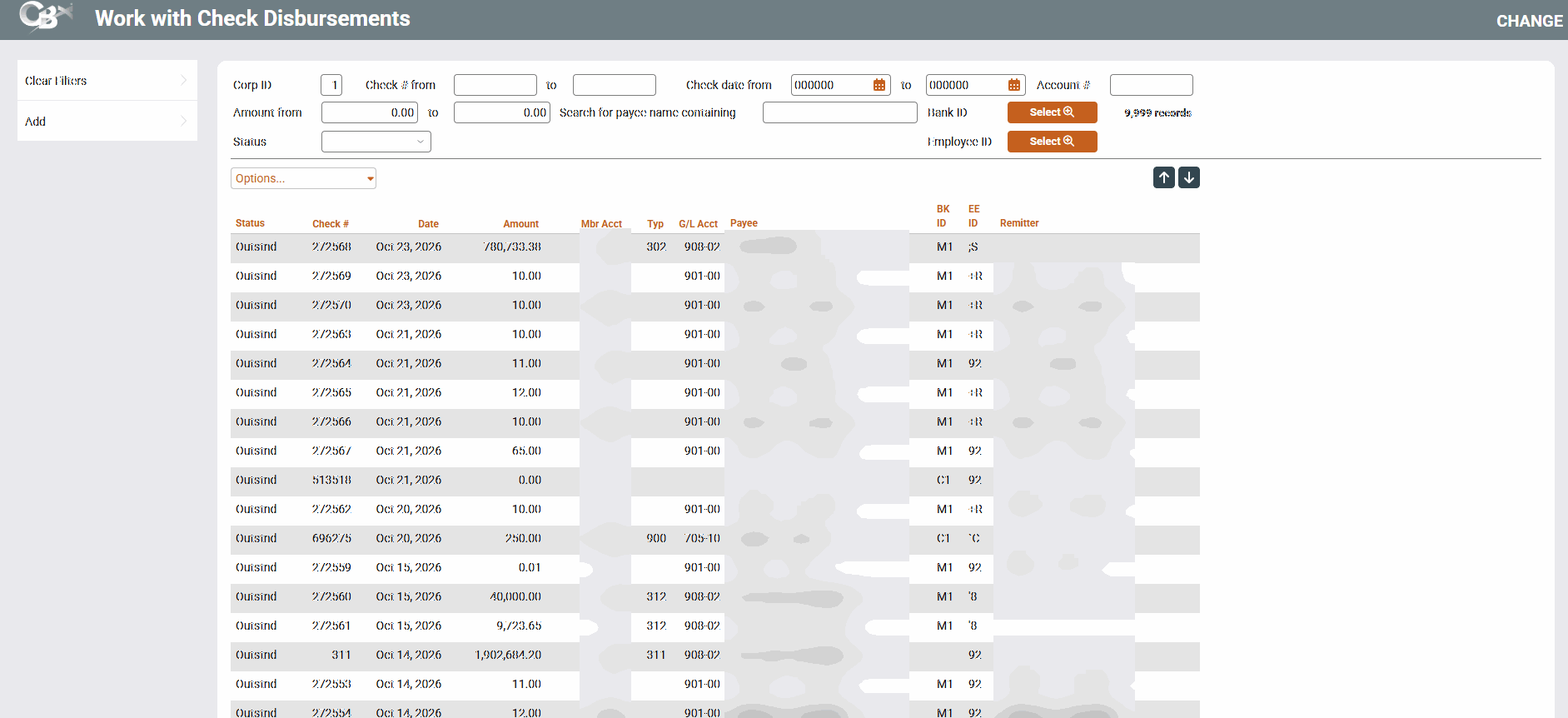
|
| Screen Title: | Work with Check Disbursements | |
| Panel ID: | 5280 | |
| Tool Number: | 203 | |
| View full-size screen |
Access this screen by selecting Tool #889 Update CU Check History or Tool # 203 Check Disbursement Inquiry (Shortcut: chkreg).
Screen Overview
This is used to view (or modify if the update version is selected) details about checks or money orders issued by the credit union. This screen is used to view the credit union Check Register, search for specific checks or money orders, and list items in the desired order. For example, if a check was spoiled, and the check number is illegible, this screen can display the check number you will need in order to reprint the check.
Sorting / Searching for a Check
-
To sort the list, click on any header at the top of the screen (such as “Check #” or “Date”). The list will simply be sorted by that column, with the first item shown at the top of the list.
-
To search for an item, sort the list. For example, if you are searching for a check number, type the text, number or amount you wish to find. Some fields support a range being entered. (For text fields such as theSearch for payee name containing field, a partial word can be entered.) Then use Enter.
Viewing/Working With Check Records
-
To view details about a check without changing anything, use View to proceed to an inquiry-only version of the check detail screen.
-
To modify details about a check, select it in the list and click Change to proceed to the check detail screen. This is only available if this screen is accessed via Tool #889.
A change made here will affect the check register ONLY. The system doesn't change or generate any journal entries as a result of the changes you make to the check history file. If you don't also make manual entries to reflect your changes, your general ledger may be out of balance. Use the CU Bank/Check Reconciliation feature (Tool #324CU Check/Bank Reconciliation) to mark checks as cleared (or void or stop pay).
-
Use Delete to completely delete this entry from the check register. There will be one confirmation message. Remember that deleting an item from the register will not affect the general ledger in any way. If an entry is deleted by mistake, use Add and re-enter the data immediately, using Add to save and Debit Detail to enter the expense detail. This is only available if this screen is accessed via Tool #889.
Adding a Manual Entry to the Check Register
Adding an entry manually will affect the check register ONLY. The system doesn't change or generate any journal entries as a result of the changes you make to the check history file. Be sure to make any necessary journal entries to reflect this change in the G/L. This is usually done only in rare cases where a check entry was accidentally deleted. This is only available if this screen is accessed via Tool #889.
-
Complete the following fields: Corp ID, Bank #, and Check No. Then press Enter to proceed to the check detail screen. Complete fields on that screen and the debit detail screen.
Column Descriptions
|
Field Name |
Description |
|---|---|
|
Status |
The code in this column indicates the status of the check or money order: O = Outstanding C = Cleared S = Spoil P = Stop Payment V = Void |
|
Check # |
This column shows the check number used on the printed check/money order. |
|
Date |
The date the check/money order was generated. This is the check date. |
|
Amount |
The full amount of the check/money order. |
|
Member Account |
The member account base and suffix, if any, against which the check/money order was issued. (If an account base is shown but the Acct Type column is empty, the base share account -000 was used.)
|
|
G/L Acct |
The G/L account number which was debited when this check/money order was cut. |
|
Payee |
The payee name entered when the check was created. |
|
Bank ID |
The bank code on which the check/money order was drawn. |