eAlerts: Add/Edit Daily Balance Notification
|
Screen ID: Screen Title: Panel ID: |
UEALRTD-05 eAlert Subscription Maintenance 6866 |
|
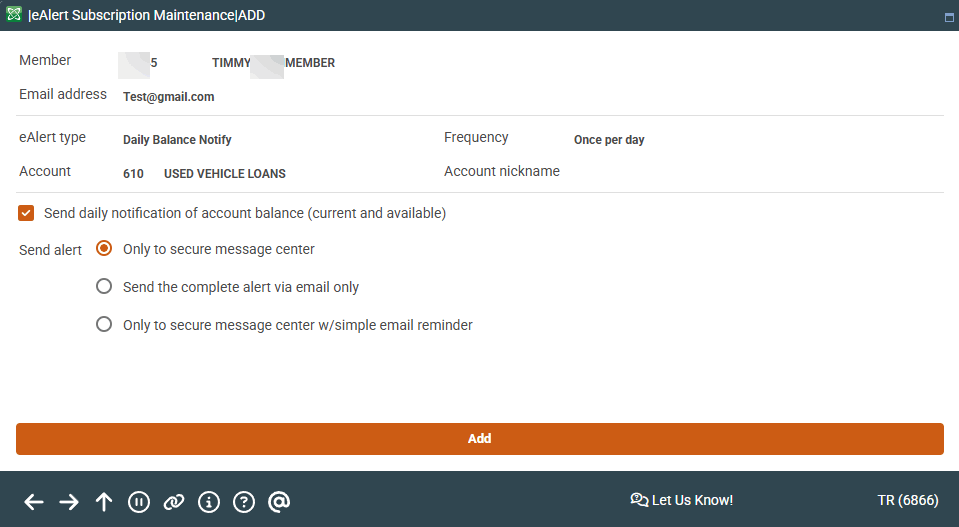
Access this screen from the eAlert Add screen and selecting to add a Daily Balance notification,or by selecting an existing Daily Balance Notification eAlert fromthe Member eAlert/eNotice Maintenance screen. If you access this screen via Inquiry, the update features described below will not be available.
Screen Overview
This screen allows a credit union employee to configure an e-Alert for a member to receive an alert indicating the member's daily balance. This alert is sent at the beginning of the day, daily.
Then, indicate how the member wants to be contacted:
-
Only to secure message center – member will only receive notification in the secure online banking message center
-
Only to secure message center with a simple email reminder – member will receive online banking message. Additionally, the member will receive an email notification that an e-Alert has been generated, asking them to log onto online banking to view the e-Alert.
-
Send complete alert via email only – member will receive an email giving the details of the e-Alert. (NOTE: This message will not include any personal information, such as membership number or member name – the identifiers for the member are the sub account number and nickname.) A “read” online banking message will also appear in the member’s online banking center.
-
Send a text alert to a mobile device (enrollment in text banking is required).
Use Update to save the request and return to the Member eAlert/eNotice Maintenance screen.
Remember that members can do the same thing themselves in online banking. These screens are intended to allow an MSR to access the member's settings while working with the member over the phone or in person.
More Details on eAlert Email Delivery
If the member requests an email notification or complete email option, and the member's email address is later marked as invalid in CBX, the member will cease to receive alert emails until the email is updated. This is the only reason and email would not be sent by the system. The member can correct this email themselves in online banking or the MSR can correct it in CBX by using Email on this screen. An email is required to sign up for these email options; messaging will alert the employee that an email address is needed if a valid email is not in the system.
Related Resources
For complete details on activating and using e-Alerts, refer to the booklet, eAlerts.
Learn how to enroll a member in eAlerts.