Non-Member Secondary Owner Maintenance
| Screen ID: |
UNMADR-04 |
|
| Screen Title: | Non-Member Secondary Owner Maintenance | |
| Panel ID: | n/a | |
| Tool Number: | n/a | |
| View full-size screen |
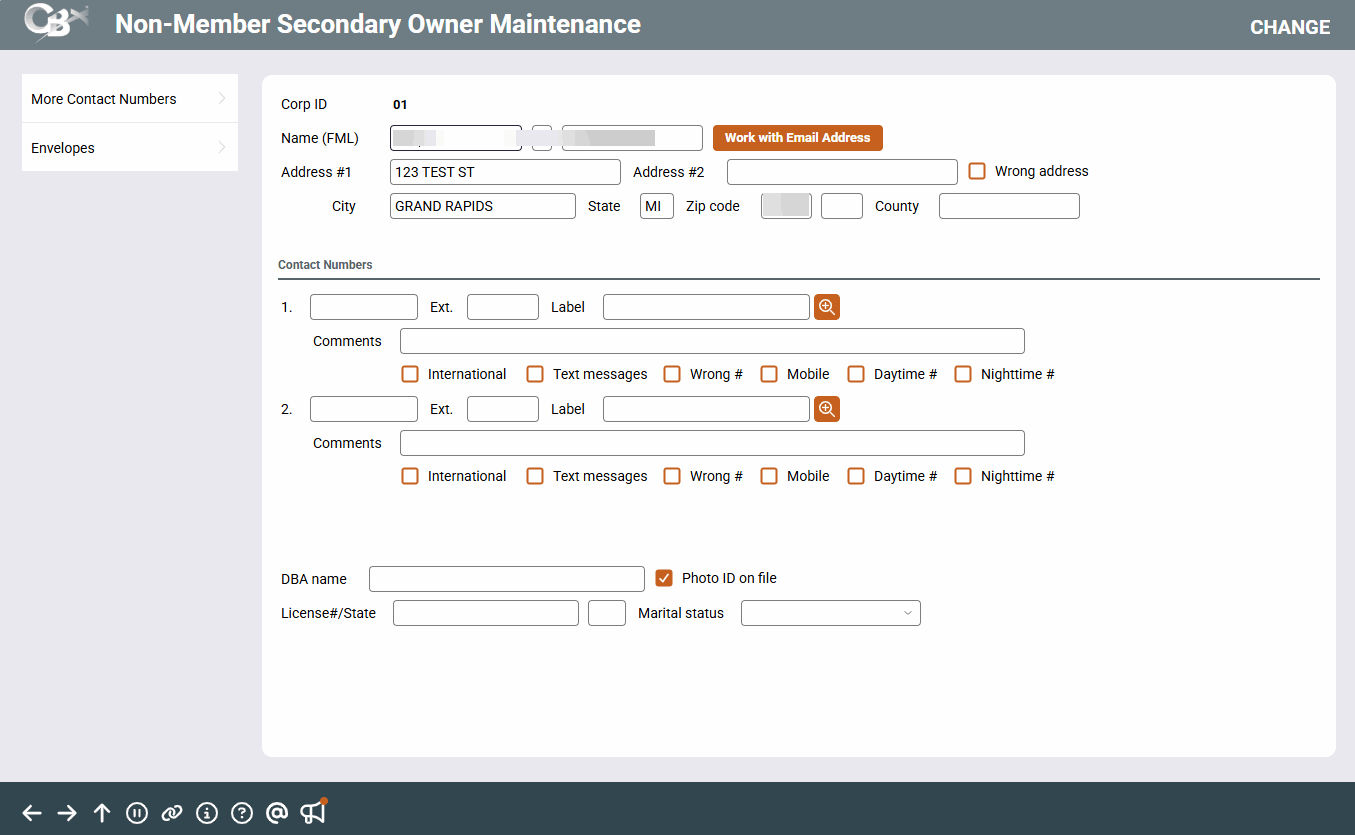
This screen appears when you use Name/Address on the Phone Operator screen and select a non-member secondary owner.
Screen Overview
This screen is used to view and update information about the non-member owner, such as name, address, email address, and phone number. When done making changes, use Enter to return to Phone Operator.
Field Descriptions
|
Field Name |
Description |
|---|---|
|
Name (FML) |
Enter the non-member's full name in the three individual fields (First, Middle Initial, Last). |
| Address #1 |
Enter the street address, such as 1234 MAIN ST SE. To match the technique used by CASS Certification, if the non-member has an apartment or suite number, include both the street address AND the apt/suite number in Address #1 if it will fit. Otherwise, enter the apt/suite number into Address #1 and use Address #2 for the street address. (For a foreign address, you will also need to include both the street address and any apartment or suite number in this field.) |
| Address #2 |
Use this for the non-member's street address if a suite or apartment number has been entered into the Address #1 field. Otherwise, leave the field blank. (For a foreign address, use this field for the city name, province abbreviation, and postal code, such as LONDON W1P6HQ or MONTREAL QC H3Z 2Y7.) |
|
City |
Enter the city name. (For a foreign address, use this field for the country name, such as ENGLAND or CANADA.) |
|
State |
Enter the 2-character state abbreviation. This field is not available for foreign addresses. Remember that Puerto Rico and the US Virgin Islands are to be treated exactly like a US address in CBX: the foreign address flag should not be checked, and the state field should be used as usual to enter the state code PR or VI. |
|
Zip |
Enter the ZIP Code. This field is not available for foreign addresses. Remember that if your credit union uses CASS certification, you will not be able to edit the ZIP+4 field. Enter the 5-digit ZIP code only and the CASS certification process will complete the ZIP+4 field. When a ZIP code is changed, the ZIP+4 field is cleared to prevent mismatches with the ZIP code. The monthly CASS certification will correct any missing ZIP+4 codes. |
|
County |
Enter the county name. |
|
Wrong Address |
Indicates whether or not the current address is correct or not. If you know the address is incorrect, but are unable to obtain the correct address, place a checkmark in this field. |
|
Contact Numbers |
Use these fields to enter the non-member's telephone contact information, any related extension, and the phone label as configured in Tool #1330 Phone Label Configuration. International: Check this box to indicate an international number, and enter the number in the comment field above. Text Messages: Check this box to indicate this number can receive text messages, but note that this number does not enroll the non-member in text banking, nor does this number transfer to the text banking settings. Wrong #: Check this box to indicate an incorrect number for a non-member. Mobile: Check this box to indicate that the listed number is a mobile/cell number. Daytime #: Check this box to indicate the non-member can be reached at the listed number during the daytime. Nighttime #: Check this box to indicate the non-member can be reached at the listed number during the nighttime. To add additional contact numbers, select More Contact Numbers to access a screen in which to do so. To delete a contact number, delete the number, extension, and label to remove the record completely (note that you may have to refresh the screen to see the update). |
|
DBA Name |
Use this field to record a DBA (doing business as) name for this non-member, if applicable. This DBA will appear on certain written communications if configured to show on the Membership Configuration detail screen. |
|
Photo ID on File |
Use this checkbox to indicate whether or not a photo ID for the non-member was scanned and saved on file. |
|
License #/State |
Use these fields to record the non-member's current Driver’s License number and the state in which license is registered. |
|
Marital Status |
Choose one of the options to indicate the non-member's current marital status: Married, Separated, or Unmarried. Leave the field blank or select Not Specified if unknown. |
Buttons
|
Button |
Description |
|---|---|
| Select this button to update the non-member’s email address or to mark the email address as wrong. | |
| More Contact Numbers | Use this to view or edit any additional contact numbers for the member. |
| Envelopes | Select this button to print the name/address on an envelope for mailing. |
Related Resources
Learn how to complete tasks related to changing a member’s personal information.