Selecting a Safe Deposit Box
| Screen ID: | USBOX-01 | 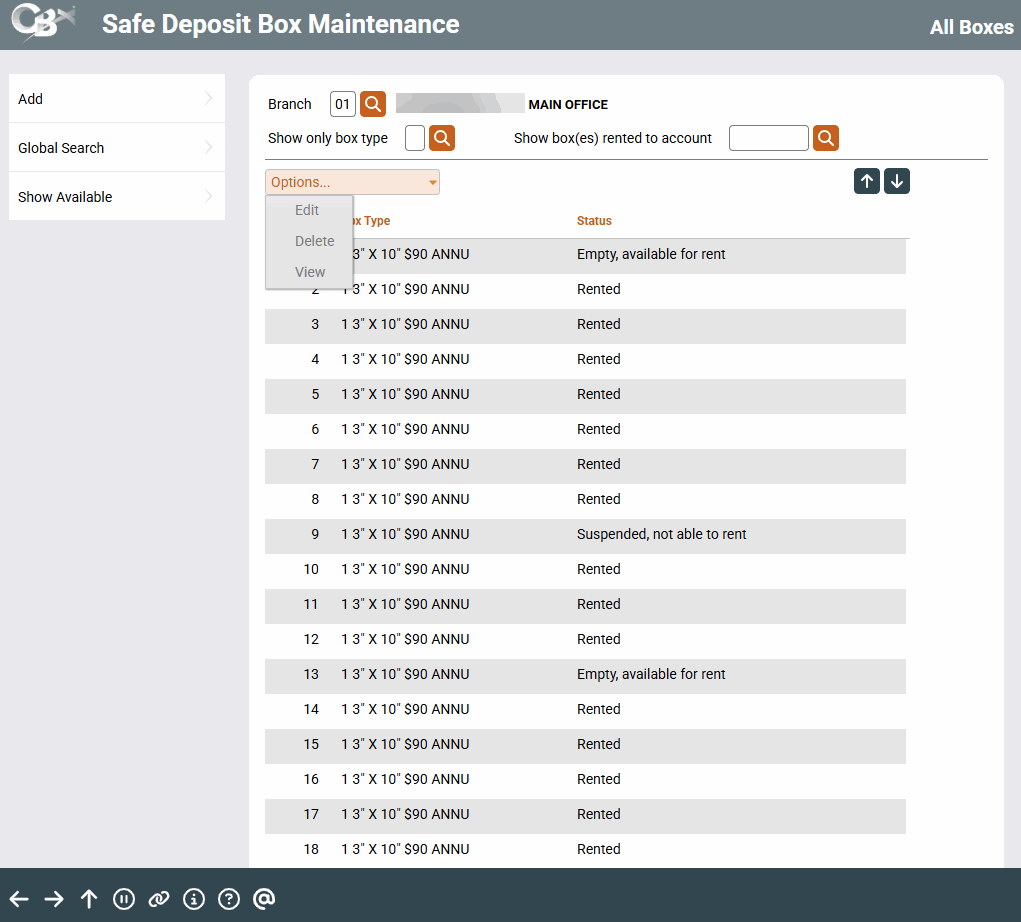
|
| Screen Title: | Safe Deposit Box Specifications | |
| Panel ID: | 2723 | |
| Tool Number: | 912 | |
| View full-size screen |
Access this screen by selecting Tool #912 Update Safe Deposit Box Information (Shortcut: sdbox).
This is the first of three screens used to record information about specific safe deposit boxes, including box number and type. These screens are also used when renting a box, to record member account number information and other comments.
-
Enter the Branch Code to view all configured boxes. In the Status column, you will see if a box is rented or available. You can also look up the desired Branch Code using the
 icon next to the Branch Code field.
-
Once a Branch Code is entered, two fields will appear: Show only box type (accompanied by the
icon, which allows you to choose a box type), and Show box(es) rented to account (also accompanied by the icon for a quick lookup of your most recent accounts accessed). -
The Status column will show one of the following for each box: Empty (available for rent), Rented, or Suspended (cannot be rented).
-
To view boxes available for rent, select Show Available.
-
To view boxes already rented by a member, use Global Search and enter the member's information.
-
To edit any existing box information or suspend a box, select a box from the list and use the Edit button. This will bring you to the next screen.
-
To add a new safe deposit box, select Add to reach the next screen.