Adding or Changing a Secondary Name
| Screen ID: |
USECNM-02 |
|
| Screen Title: |
Link a Secondary Name to this Account |
|
| Panel ID: | 6732 | |
| Tool Number: | n/a | |
| View full-size screen |
This screen appears when you use Add or Change or View on the Secondary Names maintenance screen for an individual account.
Screen Overview
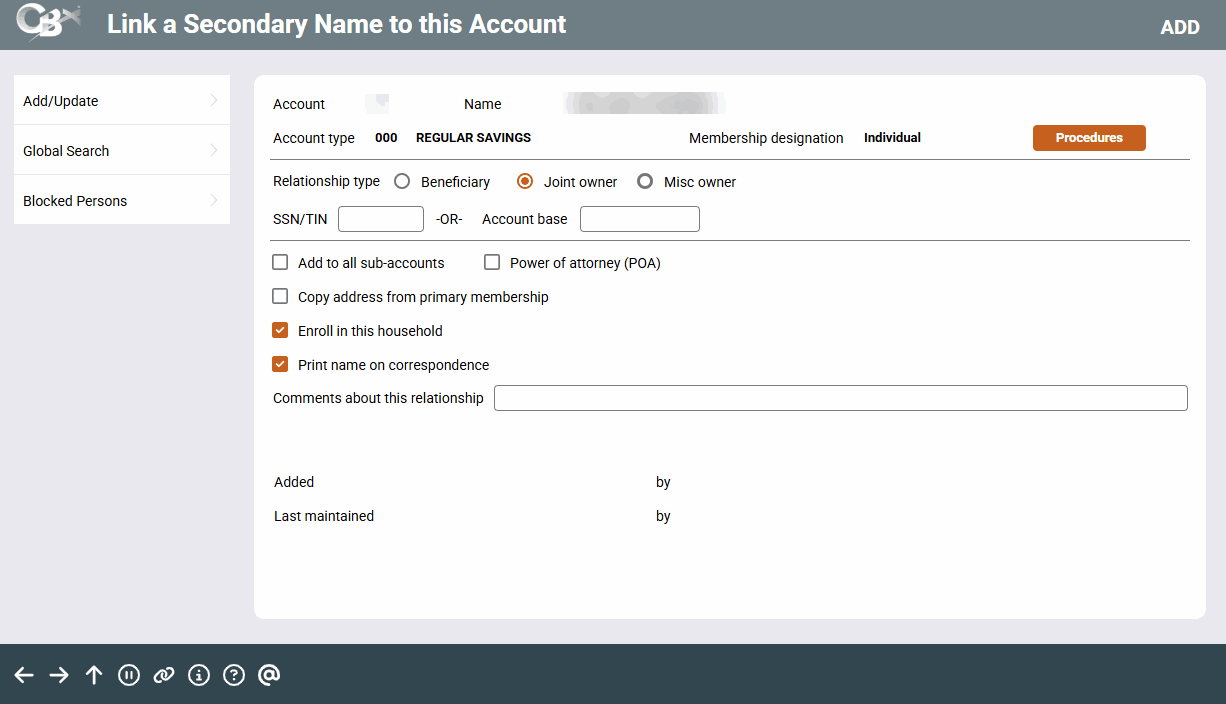
This window is used to add a new joint owner, misc. owner or beneficiary link between this account and another member or non-member record.
Adding a New Secondary Name
-
Start by choosing an ownership type: Beneficiary, Joint Owner (could also be labeled as trustee, guardian, etc., depending on the type of membership you are working with), or Misc. Owner.
-
Next, enter the SSN/TIN of another member, non-member, or even a closed membership.
OR
Enter an account base for another credit union member. -
Use Global Search to look up an account or SSN.
-
Verify the settings of all the checkboxes on the lower section of the window (see below for a description of all options).
-
If desired, enter a comment to explain the relationship this person has to the primary member.
-
Select Add/Update to save.
-
If the SSN/TIN entered does not exist anywhere in your credit union's records, you will be prompted to create a new non-member record.
-
Depending on your credit union's Workflow Controls, next you may see a Verify New Member Identity window (Match or No Match) confirming or warning about the results of the OFAC scan.
-
Depending on your credit union's Workflow Controls, you may also see a Blocked Persons window (Match or No Match) confirming or warning about the results of the new membership fraud block list scan. Overview: Fraud Block Lists
-
If you checked the Enroll in this household option, a window will appear confirming that the enrollment is complete. If the record is already enrolled in a household, a warning window will appear first so you can decide whether to switch the person to this household or not.
Changing an Existing Joint Owner to a Beneficiary or Misc. Owner
Occasionally a member may ask you to change the access privileges for an existing secondary name. For example, they may want a current joint owner to be listed only as beneficiary, or wish to make a beneficiary into a true joint owner. Simply choose the relationship type you wish and use Add/Update. A confirmation window will appear; use Add/Update again to confirm the change and return to the initial Secondary Names list. The change will be reflected in the Relationship Type column.
Options
|
Option |
Description |
|---|---|
|
Add to all sub-accounts |
Check this box to add this same secondary name to all existing sub-accounts under this membership. |
|
Power of attorney (POA) |
Check this box to add this secondary name as a power of attorney on the account. |
|
Copy address from primary membership |
If adding a secondary name that does not already exist anywhere in your database, check this flag to copy the primary member's current address and phone number into the new non-member record that will be created. (The flag must be checked before the new non-member record is created.)
|
|
Enroll in this household |
Check this flag to enroll the new secondary name into the primary member's household.
|
|
Print name on correspondence |
Available for joint owners (ownership type J records) only. Leave this box checked to print this joint owner's name on any correspondence and member statements where a joint owner normally appears. Only two names per sub-account can be flagged to print on correspondence.
|
|
Comments about this relationship |
Enter optional comments to describe the relationship this person has with the primary member. If the same person is linked to multiple sub-accounts, each link will have its own, separate comment. |
Related Resources
Learn how to complete tasks related to joint owners/beneficiaries.
Explain the differences between a joint owner and a miscellaneous owner.