Create Batch of 1Click Limit Increase Offers (Entry Screen)
| Screen ID: | ONECLKLM-01 | 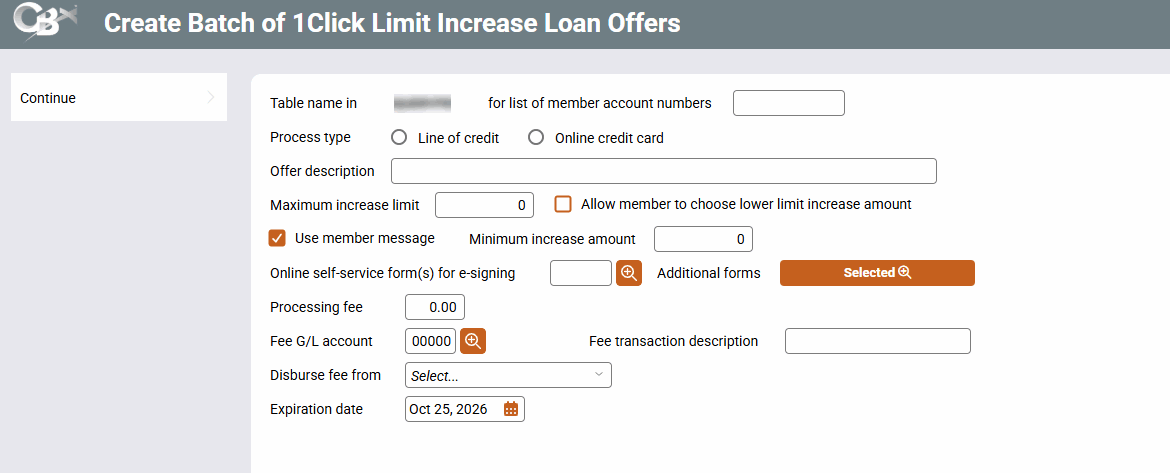
|
| Screen Title: | Create Batch of 1Click Limit Increase Loan Offers | |
| Tool Number: | 1698 | |
| View full-size screen |
Access this screen by selecting Tool #1698 Configure 1Click Offer Limit Increase.
Screen Overview
This screen allows you to begin the process of creating a batch of 1Click Limit Increase Offers. These offers let a predetermined list of members increase the credit limit on an existing line of credit or credit card account in It's Me 247. The offers appear in the member message bar above Favorite Accounts and in the My Offers module.
Unlike traditional 1Click Offers, no new loan account is created. Instead, the limit on the member's existing account is increased as soon as the member accepts the offer. Because no new loan is created, these offers do not appear in the Loan Queue (Tool #2 Work/View Loan Application Status).
Your credit union cannot withdraw or delete 1Click Limit Increase Offers once the batch is processed. If you need to withdraw offers, contact Lender*VP. Review your table carefully before processing the batch.
1Click Limit Increase Offers are for the single primary borrower only. Forms capture only the primary borrower's signature, so consider including only single-owner accounts in your table.
Depending on the size of your batch of 1Click Offers, processing times may be extended. Large batches, such as in the thousands, may take up to 10 minutes to process. Please remain on the screen until your batch has completed processing.
Follow the directions to enter data in the field descriptions below. Use Continue to advance to the next screen, where you enter the terms and conditions for the offer.
Field Descriptions
|
Field Name |
Description |
|---|---|
|
Table name in QUERYxx for the list of member account numbers |
Enter the name of your table you created specifically for the 1Click Offer program. The account base number must be in the first column of this table, and the account suffix (from MEMBER6) must be in the second column. |
|
Process type |
(Required) Choose Line of credit (L) or Online credit card (V). The process type must match the accounts in your table; accounts that do not match are counted as errors. Only the process type is checked, not the loan category, so make sure your table includes only the accounts you intend to increase. |
|
Offer description |
(Required) This is where you will enter a name or description for your offer. You may use up to 30 characters. |
|
Maximum increase limit |
(Required) Maximum amount of the limit increase. Field must be in whole dollars only. The account's current limit plus this amount cannot be more than the maximum allowed by the loan category. Accounts that would exceed the category limit are counted as errors. |
|
Allow member to choose lower limit increase amount |
Check this box if you would like to give your members the option to take less than what is offered. If checked, you must also enter a Minimum increase amount. |
|
Minimum increase amount |
(Required if Allow member to choose lower limit increase amount is checked) The lowest increase amount the member can choose in It’s Me 247. Field must be in whole dollars only. |
|
Use member message |
Leave this box checked. This is the same setting as Use banner ad on other 1Click Offer tools. |
|
Online self-service form(s) for e-signing |
(Optional field) This allows you to add a form to the 1Click Offer acceptance process. Only loans configured for online banking (OL) are allowed. Limit Increase Offers require their own form. A warning message will be presented if no form is attached. The message reads "No form is attached. Do you want to continue?" |
|
Additional forms |
(Optional field) Use this to include up to five additional forms. The form you selected in “Online self-service form(s) for e-signing” will already be highlighted, indicating that you should not select it again. Only loans configured for online banking (OL) are allowed. |
|
Processing fee |
(Optional field) Enter a fee that the member will pay when they accept the offer. Where the fee is taken from depends on the Disburse fee from setting below. |
|
Fee G/L account |
Enter the G/L to use with the fee, if applicable. |
|
Fee transaction description |
Enter the transaction description for the fee, if applicable. |
|
Disburse fee from |
(Required if Processing fee is specified) Select the account where the fee will be taken from. There are three options: Checking/savings account - The member selects a savings or checking account from the dropdown. Either - The loan account is included in the dropdown along with the member's savings and checking accounts. This loan account (currently only available for Limit Increase Offers) - There is no dropdown. The fee is taken from the loan account receiving the increase. The fee and limit increase post at the same time. If the member does not have enough available credit to cover the fee, the loan account cannot be selected. When the fee is taken from the loan account, it posts with Origin Type 96, Tran Code 53, and Tran Type 55. Nothing in It's Me 247 tells the member that a fee taken from the loan may be subject to finance charges. If it is, call this out in the offer's terms and conditions and on your forms. |
|
Expiration date |
The date on which your 1Click Offer will expire. Defaults to 30 days from the current date. This field cannot exceed one year from the current date. |