Create Batch of 1Click Limit Increase Offers (Terms and Conditions and URL)
| Screen ID: | ONECLKLM-02 | 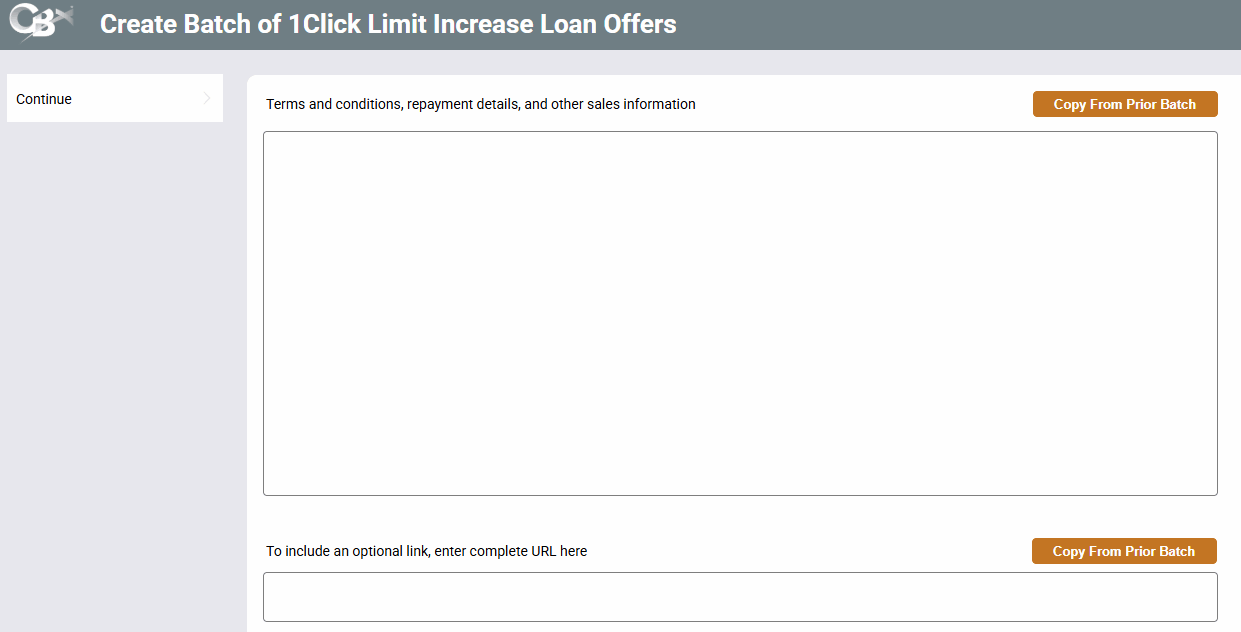
|
| Screen Title: | Create Batch of 1Click Limit Increase Loan Offers | |
| Tool Number: | 1698 | |
| View full-size screen |
Access this screen by using Continue on the first screen to create 1Click Limit Increase Offers.
Screen Overview
This screen allows you to enter the text that markets your 1Click Limit Increase Offer and the terms and conditions the member agrees to before accepting the increase. The member reads this text by clicking Terms & Conditions on the offer in It's Me 247.
Upon entry this screen will be empty. Since there is no spell check on this screen, it is recommended that you compose your text in another source, such as Microsoft Word, and then copy it into this screen.
-
The first box (Terms and conditions, repayment details, and other sales information) markets the offer and explains its terms. For example, you can explain that with just a click, the member's higher limit is available immediately. If you charge a processing fee, explain how it is taken. If the fee taken from the loan account is subject to finance charges, say so here, since nothing else in It's Me 247 tells the member. The maximum character limit for this field is 2,100 characters (including spaces).
-
The second box is optional. This box allows you to enter a URL to link to a website for additional information. The member will access this URL when viewing the Terms and Conditions via a conditional More Info button. If the member clicks the button, they will be taken to the URL entered in this field.
If you have used the 1Click Batch feature before, you can also use Copy From Prior Batch to copy a block of text used for a previous offer, and then adjust the text to meet the requirements of the current offer.
Copy From Prior Batch lists all prior 1Click Offer batches, not just 1Click Limit Increase batches. If you copy text from a loan offer, reword it so it fits a Limit Increase Offer.
The first box must have data for you to continue. The second box can be left blank.
Use Continue to advance to the next screen, where you enter the final instructions for the member.