Create Batch of 1Click Limit Increase Offers (Final Instructions)
| Screen ID: | ONECLKLM-03 | 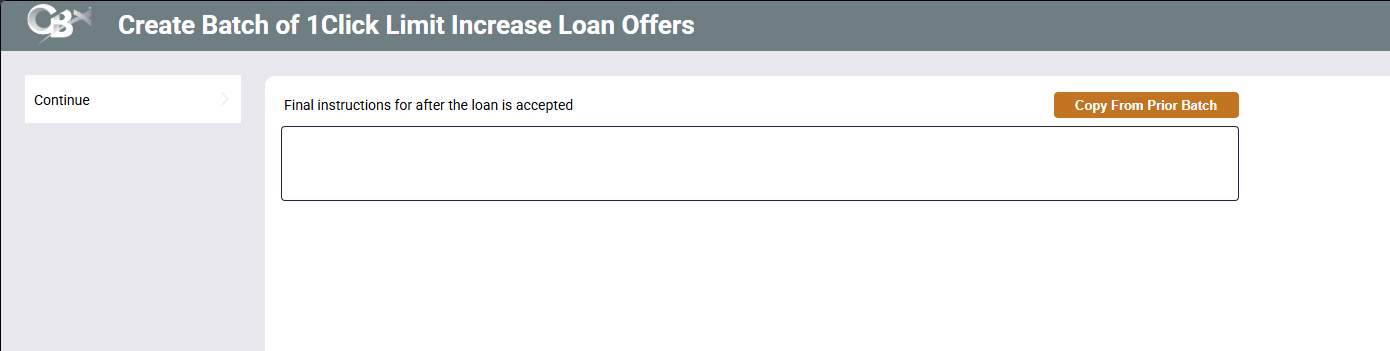
|
| Screen Title: | Create Batch of 1Click Limit Increase Loan Offers | |
| Tool Number: | 1698 | |
| View full-size screen |
Access this screen by using Continue on the screen to create the terms and conditions of 1Click Limit Increase Offers.
Screen Overview
Use this screen to enter the final instructions the member sees after they accept the 1Click Limit Increase Offer. These instructions appear on the confirmation screen in It's Me 247, below the member's new credit limit.
Because the new limit is available immediately, you might let the member know they can start using it right away, and thank them for their membership. The maximum character limit for this field is 360 characters (including spaces).
Upon entry this screen will be empty. Since there is no spell check on this screen, it is recommended that you compose your text in another source, such as Microsoft Word, and then copy it into this screen.
If you have used the 1Click Batch feature before, you can also use Copy From Prior Batch to copy a block of text used for a previous offer, and then adjust the text to meet the requirements of the current offer.
Copy From Prior Batch lists all prior 1Click Offer batches, not just 1Click Limit Increase batches. If you copy text from a loan offer, reword it so it fits a Limit Increase Offer.
This field must be completed to continue.
Use Continue to advance to the final screen.