Create Batch of 1Click Limit Increase Offers (Final Screen)
| Screen ID: | ONECLKLM-04 | 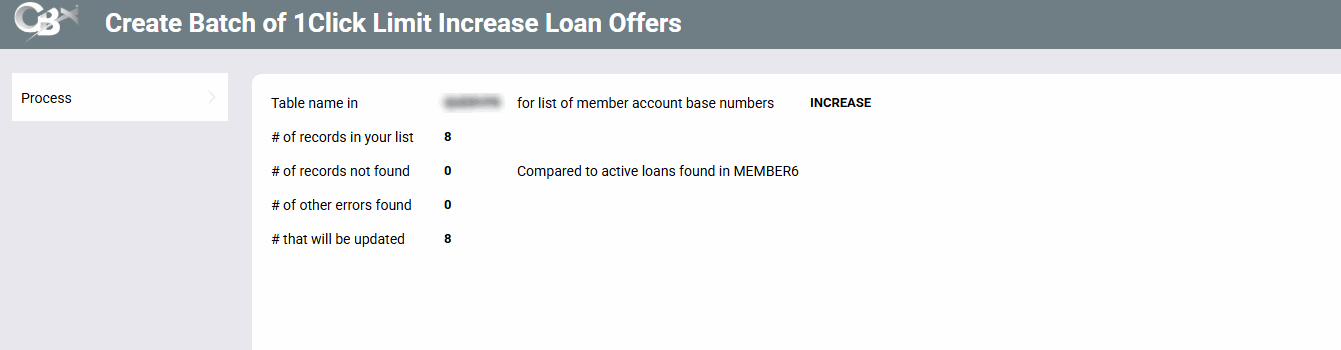
|
| Screen Title: | Create Batch of 1Click Limit Increase Loan Offers | |
| Tool Number: | 1698 | |
| View full-size screen |
Access this screen by using Continue on the screen used to enter the final instructions for the 1Click Limit Increase Offers.
Screen Overview
The final screen shows how many accounts in your table will receive the 1Click Limit Increase Offer, along with any accounts that cannot be included. Each account in your table is compared to active loans in MEMBER6.
-
# of records in your list - The total number of accounts in your table.
-
# of records not found - The account base and suffix combination was not found among active loans in MEMBER6.
-
# of other errors found - The account's process type does not match the process type selected on the first screen, or the account's current limit plus the maximum increase is more than the loan category allows.
-
# that will be updated - The number of accounts that will receive the offer.
Your credit union cannot withdraw or delete 1Click Limit Increase Offers once the batch is processed. If the number of records not found or errors is higher than you expect, go back and review your table before clicking Process.
Click Process to create the offers. A confirmation window shows the number of members who will be presented the 1Click Limit Increase Offer. Click Continue to close the window.
Once processed, two reports are sent to the print queue of the person who created the batch: a list of members receiving the offer and a list of exceptions.