Member Account Transfer
| Screen ID: |
TPHJT-01 |
|
| Screen Title: |
Phone Transfers |
|
| Tool Number: | Multiple | |
| View full-size screen |
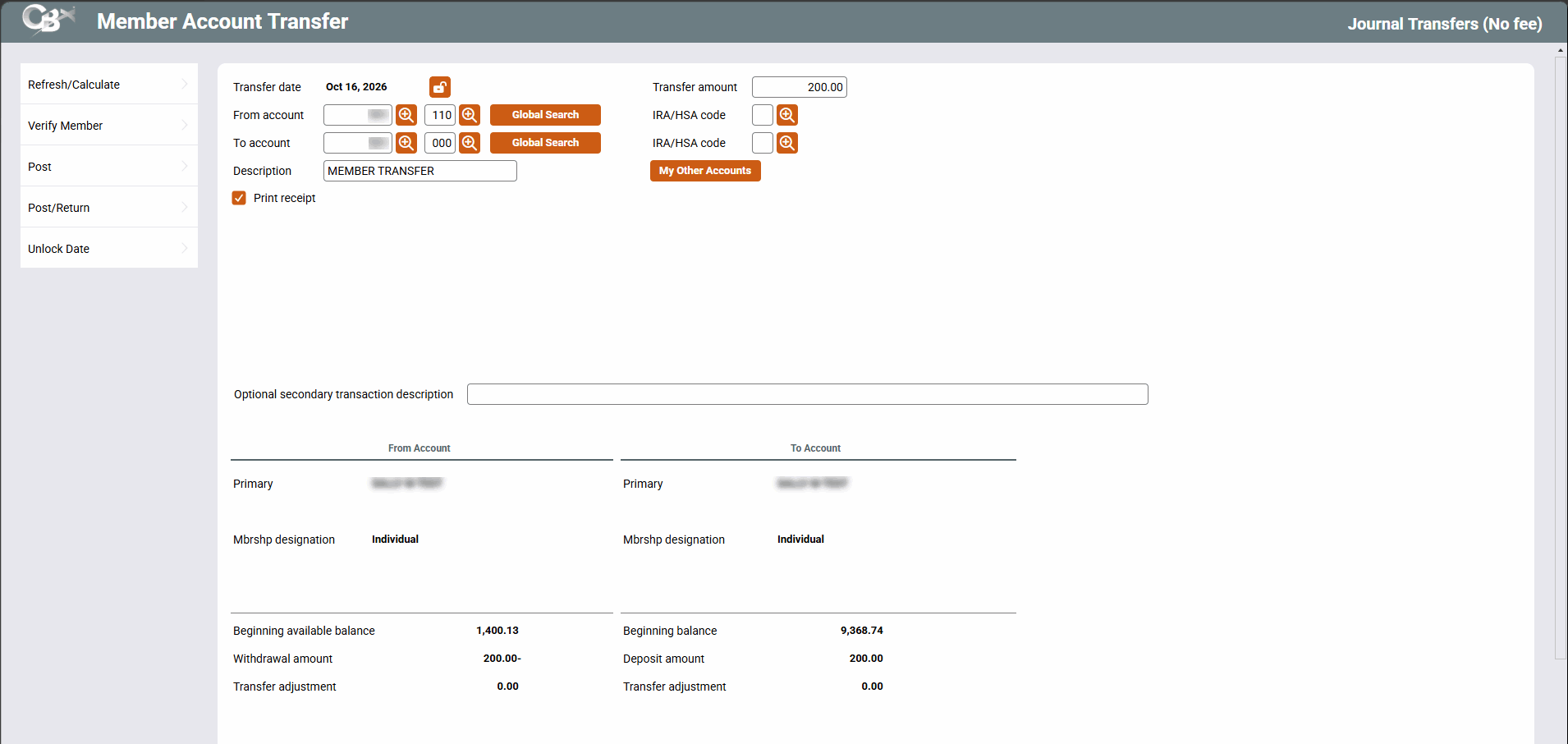
This screen is displayed when you choose the “Transfer” action on the Phone Operator Account Processing screen, use Tool #516 Member Transfers (Shortcut: transfers), or use Tool #354 Effective-Dated Transfers.
Screen Overview
This screen is used to transfer funds from one member account to another. Start by entering the transfer amount. Next enter a "from" account or use the  to view the ten most recent accounts that you accessed and the account suffix look up to find the sub accounts. Then enter a “to” account. If either of the accounts is an IRA or an HSA, you must enter an IRA or HSA code for the withdrawal or deposit.
-
Or use Global Search to access the Global Search screen.
Click Refresh/Calculate to display the remaining sections on the screen that show member account information. These areas include the amount of the transfer and how it affects the balance of each account.
If you are transferring funds to correct a transaction made in error on an earlier date (such as if money was accidentally deposited into a savings account last week and should have been put into the member’s money market instead), if allowed by your CU you may be able to use Unlock Date and post an effective-dated transfer that will automatically adjust dividends/interest on both accounts. See below for more details on posting an effective-dated transfer.
The Print receipt box will be checked if Produce receipts via other posting (for any transaction type) is selected on the Workstation Controls screen. You may uncheck the box if no receipt is needed.
This can be used to make transfers in the Xtend Shared Branch network, but not for transfers via the FSCC or CUSC networks.
Withholding on IRA Withdrawals
If your credit union has activated IRA withholding in Tool #414 Configure IRA Plan Settings, federal and/or state withholding fields appear when an IRA withdrawal code is entered. The fields are filled in with the defaults from Tool #414 and can be changed for this transfer. The withholding is subtracted from the amount deposited to the "to" account and posted as a miscellaneous receipt.
Withholding is not available for HSA withdrawals, and the withholding fields do not appear when this screen is opened from Tool #354 Effective-Dated Transfers.
Ascensus Integration
If your credit union uses the Ascensus integration, the Access Third Party window appears after posting a transfer that uses an IRA or HSA code. Any withholding on the transfer is included in the information sent to Ascensus. This does not apply to transfers made through Tool #354.
Does Your Member Want to Transfer to Another of Their Accounts?
If the member wants to transfer funds to another of their accounts, simply enter the amount of the transfer. Instead of needing to manually enter the second account, click  and select this account from the following screen. You will then return to this transfer screen with all the details for this second account automatically filled in for you.
Bottom of the Screen
The bottom half of the transfer screen will display after pressing Enter (or if you use the My Other Accounts button). This section of the screen displays information about both accounts involved in the transfer. This information includes the amount of the transfer, and how it affects the balance of each account. The summary gives you a chance to review the data entries before posting the transfer. If you need to make corrections to this transfer, do so at the top of the screen and press Enter to refresh the data at the bottom.
-
Want to check the member’s Code Word or other personal information? To verify any personal information about the member, such as a code word, use Verify Member to access the Verify Member screen. This button appears only after you use Enter (forward arrow).
-
Charging a fee for this transfer? If your credit union uses phone transfer fees, the upper-right quadrant will calculate and display general information about this member's relationship with the credit union, to assist with fee waiver decisions according to credit union policy. SEE ALSO: Configuring Phone Transfer Fees
-
Want to make an Account-to-Account Transfer? If your credit union allows Account-to-Account transfers in Phone Operator, see Account-to-Account (A2A) Transfers.
-
Want to enter a Secondary Description? If your To: account is an account of a different membership or different account base, you can enter an optional secondary transfer description for your member in the field provided. This text appears in the member’s statement and in online banking. (If the To: account is an account of a different membership, you can select to add the description on the second account.)
Need to verify a spouse or Secondary Name on the Account? To verify secondary names, such as a Joint Owner or Beneficiary, click  to view the Secondary Names screen. This screen contains all of the secondary account holders on the membership and from this screen you may view scanned photo IDs (if available). You can also record here whether an ID was collected for the person by checking the ID on File checkbox.
-
Want to post several transfers? Use Post/Return to post a transaction and return to the transfer screen where you can post an additional transfer.
-
Is this account affected by Reg D? A counter will appear if this account follows Reg D rules and helpful messaging will let you know if this transfer will cause you to exceed your allowed number. SEE ALSO: Reg D Counter Warning for Phone Operator Transfers.
-
Withdrawing from an IRA with withholding?The From Account section shows the full Withdrawal amount and the federal and/or state withholding being taken out. The To Account section shows the Deposit amount, which is the withdrawal amount minus any withholding.
After viewing the summary, make any needed corrections and press Enter to refresh the screen again.
When ready to perform the transfer, use Post. The system posts the transaction and clears the screen, enabling you to make another transfer. To leave the screen without posting anything, use Skip.
-
Remember that a single transfer actually generates two separate transactions on the system: one for the withdrawal, and one for the deposit. This will be important later if the transaction needs to be reversed or adjusted for any reason. If withholding is taken on an IRA withdrawal, each withholding amount is also posted as its own transaction.
If Posting an Effective-Dated Transfer
Although the process is very similar to a regular transfer, on an effective-dated transfer (where you used Unlock Date), you’ll see that the secondary transaction description includes a notation about the effective date. You’ll also see a Transfer adjustment at the bottom of the screen for both the “from” and “to” account, showing the amount of dividend or interest adjustment the system calculated. (Those adjustments will be posted via separate transactions, all with the effective date notation in the secondary transaction description.)
Just like a regular transfer, you can change any of the settings, such as the amount or even the account numbers, and press Enter to refresh. If necessary, the system may display the second screen again showing the transaction history (such as if you change the effective date or enter a different account number).
Refer to the Effective Dating for Member Transactions booklet for complete details on using this tool.
Account-to-Account (A2A) Transfers
Your credit union can choose to offer A2A transfers and allow your tellers to make transfers of member funds to outside financial institutions in Phone Operator only. To make this transfer use the A2A In or A2A Out buttons to activate the A2A transfer control list. Select an outside account which has previously been configured in Member Personal Banker. Then enter the amount of the transfer. Fees can be overridden if configured. Simply press Post to transfer the funds.
For more information about Account-to-Account transfers refer to the booklet Account-to-Account (A2A) Transfers.
Field Descriptions
|
Field Name |
Description |
|---|---|
|
Transfer amount |
The total amount of the transfer. |
|
From Account |
The account base and suffix from which the funds should be withdrawn. |
|
IRA/HSA code |
If transferring from an IRA or HSA account type, use the lookup to find the appropriate IRA or HSA withdrawal code. |
|
Activate federal IRA withholding |
Appears only when an IRA withdrawal code is entered and federal withholding is activated in Tool #414 Configure IRA Plan Settings. Check to withhold federal income tax from this withdrawal. |
|
Federal withholding % for IRA withdrawals |
Defaults from Tool #414. Change as needed for this transfer. Enter either a percentage or a dollar amount, not both. |
|
Activate state IRA withholding |
Appears only when an IRA withdrawal code is entered and state withholding is activated in Tool #414 Configure IRA Plan Settings. Check to withhold state income tax from this withdrawal. |
|
State withholding % for IRA withdrawals |
Defaults from Tool #414. Change as needed for this transfer. Enter either a percentage or a dollar amount, not both. |
|
To account |
The account base and suffix to which the funds should be deposited. |
|
IRA/HSA code |
If transferring to an IRA or HSA account type, use the lookup to find the appropriate IRA or HSA deposit code. NOTE: Funds from an HSA cannot be transferred to a non-HSA account. |
|
Description |
A description of the transaction. The system provides a default description, but this may be changed as desired. |
|
Print receipt |
Place a check here if you wish to print a receipt of the transaction. This can be selected by default by checking "Member transfer" under "Receipt Printing for Miscellaneous Applications" on the Workstation configuration screen. |
|
Charge fee |
(Appears only if making the transfer via Phone Transfer, if your credit union is configured to charge phone transfer fees.) If allowed by the configuration, you may be able to remove the checkmark from this field before posting the transaction, to waive the default phone transfer fee. (Any fees that are manually waived will be included on the Fee Waiver Information Report (Tool #371 Fee Waiver Information Report). If this fee is charged for an Account-to-Account (A2A) transfer, the A2A fee amount will be taken from the account to which the A2A deposit is being made or from which the A2A withdrawal is being made. The fee cannot be charged to a sub-share account. If the A2A transfer is an incoming loan payment on a loan account, a fee will not be assessed. |
|
From Account These fields show the result of the transfer on the account from which funds will be withdrawn. |
|
|
Name |
The member's full name. |
|
Mbrship designation |
The member’s Membership Designation |
|
# of Reg D withdrawals |
Present only when the transfer is made through Phone Operator and the member's dividend application follows Reg D rules. The count increases each time an applicable transfer is made, and a warning message displays when the limit is reached. SEE ALSO: Reg D Counter Warning for Phone Operator Transfers. |
|
This button is present if there are secondary names on the membership (such as Joint Owners or Beneficiaries). Clicking this button will allow access to the Secondary Name screen where the names and photo IDs (if scanned) can be viewed. You can also record here whether an ID was collected for the person by checking the ID on File checkbox. |
|
|
Beginning available balance |
The available balance on this account before the transfer. Available balance is calculated as Current Balance minus par value (if any), secured funds (including misc. secured funds and pledged shares) and uncollected funds (check holds). |
|
Withdrawal amount |
The full amount being withdrawn from this account, as specified at the top of the screen. |
|
Federal withholding |
Appears only when federal withholding is applied to an IRA withdrawal. The withdrawal amount multiplied by the percentage, or the dollar amount entered. |
|
State withholding |
Appears only when state withholding is applied to an IRA withdrawal. The withdrawal amount multiplied by the percentage, or the dollar amount entered. |
|
Transfer adjustment |
If you are posting an effective-dated transfer (meaning you’ve unlocked the Transfer date and entered a date prior to today), this will show the amount of dividends (or interest) being added (or subtracted) on this particular account, according to the number of days between today and the effective date you entered. |
|
Fee amount |
The transfer fee amount, if any, to be charged to the from account. If this fee is charged for an Account-to-Account (A2A) transfer, the A2A fee amount will be taken from the account to which the A2A deposit is being made or from which the A2A withdrawal is being made. The fee cannot be charged to a sub-share account. If the A2A transfer is an incoming loan payment on a loan account, a fee will not be assessed. |
|
Ending available balance |
The available balance in the account as it will be after the transfer and fee are posted. |
|
To Account These fields show the result of the transfer on the account that will receive the funds. |
|
|
Name |
The member's full name. |
|
Mbrship designation |
The member’s Membership Designation |
|
This button is present if there are secondary names on the membership (such as Joint Owners or Beneficiaries). Clicking this button will allow access to the Secondary Name screen where the names and photo IDs (if scanned) can be viewed. You can also record here whether an ID was collected for the person by checking the ID on File check box. |
|
|
Beginning balance |
The current balance of the account (before the transfer). |
|
Deposit amount |
The amount being deposited to this account. For an IRA withdrawal with withholding, this is the withdrawal amount minus any withholding. For transfers to share accounts, this will be a positive number. For transfers to loans, this will show as a negative number (because the transfer will act like a payment and reduce the balance owed on the loan). |
|
Principal Only |
To apply the transfer amount directly to the loan's principal balance, select this flag before posting. Note that when selecting to apply the entire amount as principal, you cannot choose to further override the payment matrix. Incoming A2A (Account to Account) transfers will ignore this box if it is checked. |
|
Transfer adjustment |
If you are posting an effective-dated transfer (meaning you’ve unlocked the Transfer date and entered a date prior to today), this will show the amount of dividends (or interest) being added (or subtracted) on this particular account, according to the number of days between today and the effective date you entered. |
|
Fee amount |
The transfer fee amount, if any, to be charged to the from account. If this fee is charged for an Account-to-Account (A2A) transfer, the A2A fee amount will be taken from the account to which the A2A deposit is being made or from which the A2A withdrawal is being made. The fee cannot be charged to a sub-share account. If the A2A transfer is an incoming loan payment on a loan account, a fee will not be assessed. |
|
Ending balance |
The current balance on the account as it will be after the transfer is posted. |
Buttons
|
Button |
Description |
|---|---|
|
Refresh/Calculate (Enter) |
Use at any time to recalculate all of the data on the screen without posting anything. |
|
Use this to view a version of the Verify Member screen which contains personal information on the member, such as a code word. This button appears only after you use Enter. |
|
|
Post |
Use this to post the transaction.
|
|
Post/Return |
Use this to post a transaction and return to the transfer screen to post an additional transaction. |
|
Skip |
Use this to cancel the transfer and return to the Home Page. |
|
Use this function to override the configured payment matrix when the TO account is a loan account. The system displays how the payment is going to be credited (principal, interest due, sales tax, fines, etc.), and adjustments can be made to all of the “bucket” totals. Sales tax payment can be waived, Misc. G/L allowances can be adjusted for penalties, and fines can even be waived or modified according to credit union policy. On the resulting screen, use the Amount field to enter the appropriate amounts to be distributed (the items listed will vary depending on the loan category). The total funds distributed must equal the amount of the payment being made. This button will not appear on mortgages with the 360-day interest calc type. That’s because these types already have special handling for amounts either above or below the normal payment amount, which would interfere with payment matrix overrides. It will also not appear on online credit card accounts, where payment matrix overrides are not allowed. |
|
|
Unlock Date |
If your credit union allows staff to post effective-dated transfers, this function will unlock the Transfer date field at the top of the screen and proceed with an effective dated member transfer, including an automated adjustment to dividends or interest. After you choose a date and press Enter, a second screen showing transactions since the effective date will appear. Refer to the Effective Dating for Member Transactions booklet for complete details. Once you use this function to unlock the date, you must enter a date in the past. If you want to return to posting a regular transfer as of today’s date, you will need to back up and start over, without using the Unlock Date feature. |
|
A2A In |
(Phone Operator only) Use this option to make incoming Account-to-Account Transfers. |
|
A2A Out |
(Phone Operator only) Use this option to make outgoing Account-to-Account Transfers. |
Related Resources
Learn about Reg D counts when transferring funds from Phone Operator.
For information about Account-to-Account transfers, refer to the Account-to-Account (A2A) Transfers reference guide.
For information about IRA withholding and the Ascensus integration, refer to the IRA Processing reference guide.