Setting Up Overdraft Protection Accounts (2)
|
Screen ID: Screen Title: Panel ID: |
UODMST01 Member Overdraft Protection Maintenance 2600 |
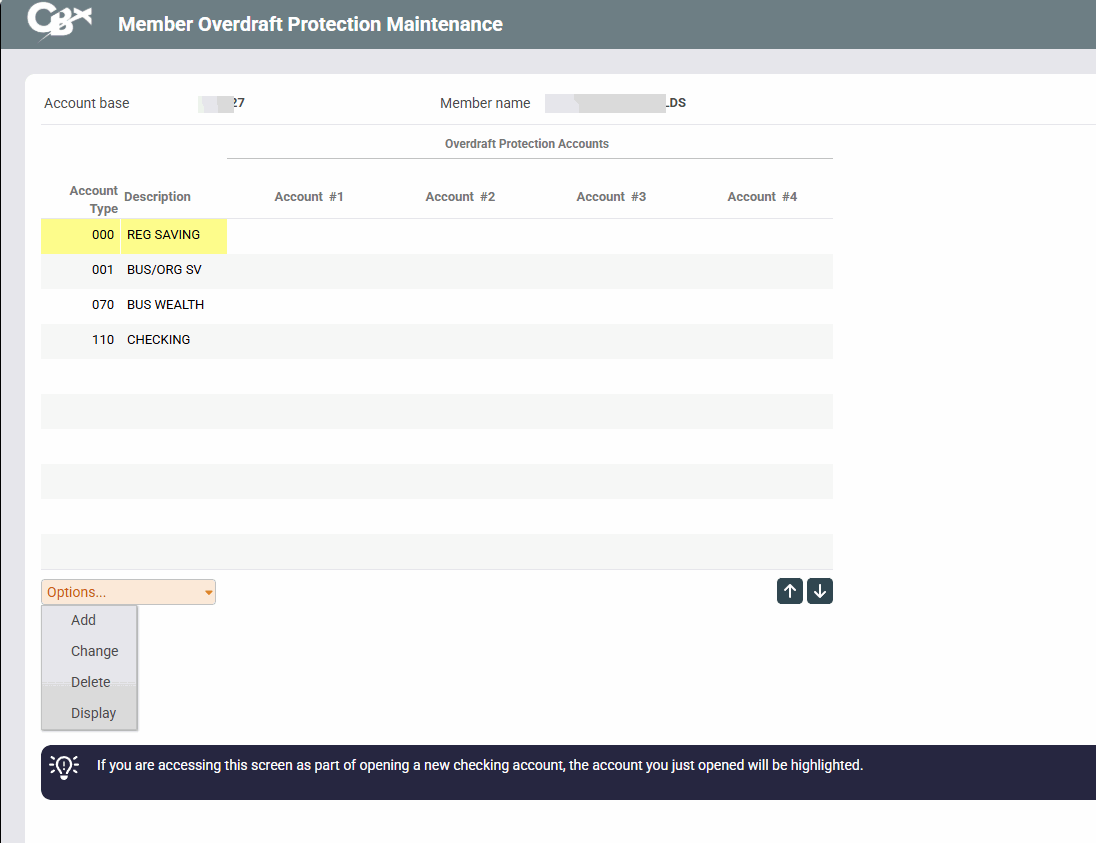
This second screen follows the first screen and shows all of the member's accounts and lists any overdraft protection accounts that have already been assigned. (If you are accessing this screen as part of opening a new checking account, the account you just opened will be highlighted.)
Screen Overview
Select the account that should be protected, and then select Change to proceed to the third screen.
Options
|
Option |
Description |
|---|---|
|
Use this option to add another account to be used as overdraft protection. |
|
|
Use this option to add additional accounts to be used as overdraft protection or change existing accounts used as overdraft protection. |
|
|
Delete |
Use this option to remove all accounts assigned for overdraft protection. A confirmation screen will appear; press Enter again to remove the protection. |
|
Use this option to display additional details on overdraft protection accounts.
|
Related Resources
Why did my member get charged a fee?