Completing Member Survey (1)
| Screen ID: | UMSR-01 | 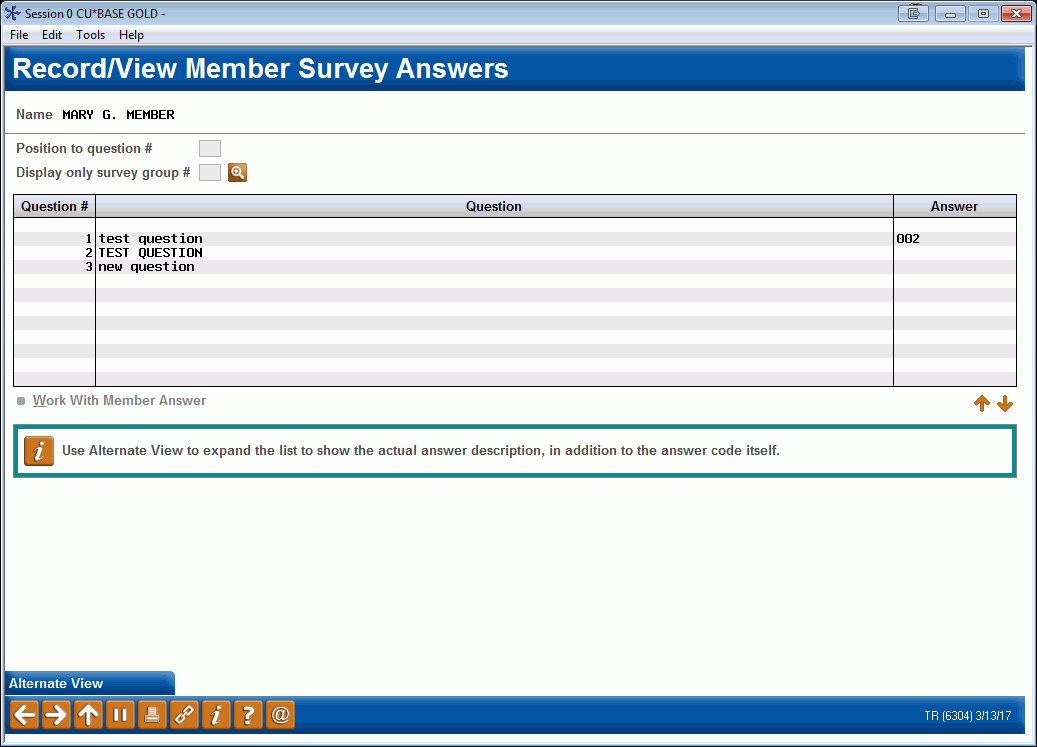
|
| Screen Title: | Record/View Member Survey Answers | |
| Panel ID: | 6304 | |
| Tool Number: | 996 | |
| Click here to magnify |
Access this screen after entering an account number on the entry screen and pressing Enter.
Helpful Resources
For information about configuring survey questions or analyzing survey results, refer to the booklet, Using the CBX Member Survey.
Screen Overview
This is the first of two screens used to fill in a member's responses to your CBX Member Survey. This screen shows all of the questions configured for the member survey, along with any responses already recorded for this member.
Use the fields at the top of the screen to move to a specific question, or display only questions that belong to a specific survey group. Use Alternate View (F11) to expand the list to show the actual answer description, in addition to the answer code itself.
To answer a question or change a previous answer, select the question and use Enter to proceed to the second screen.
Working with Survey Groups
The Display Only Survey Group option is particularly helpful if your survey is set up so that only a certain group of questions should be asked by specific employees or in key member contact situations, such as a loan applicant survey.
Enter a group number into this field if you are gathering responses
to only a few questions on the survey based on survey group. (Click the
lookup button  to see a list of your credit
union's configured groups.)
to see a list of your credit
union's configured groups.)
Clear both fields and use Enter to view all questions.
 Additional Video Resources
View more member-facing online banking videos!