Personal Internet Branch PIB Profile
|
Screen ID: Screen Title: Panel ID: |
UPIBCFG-02 Configure PIB Profile 5052 |
|
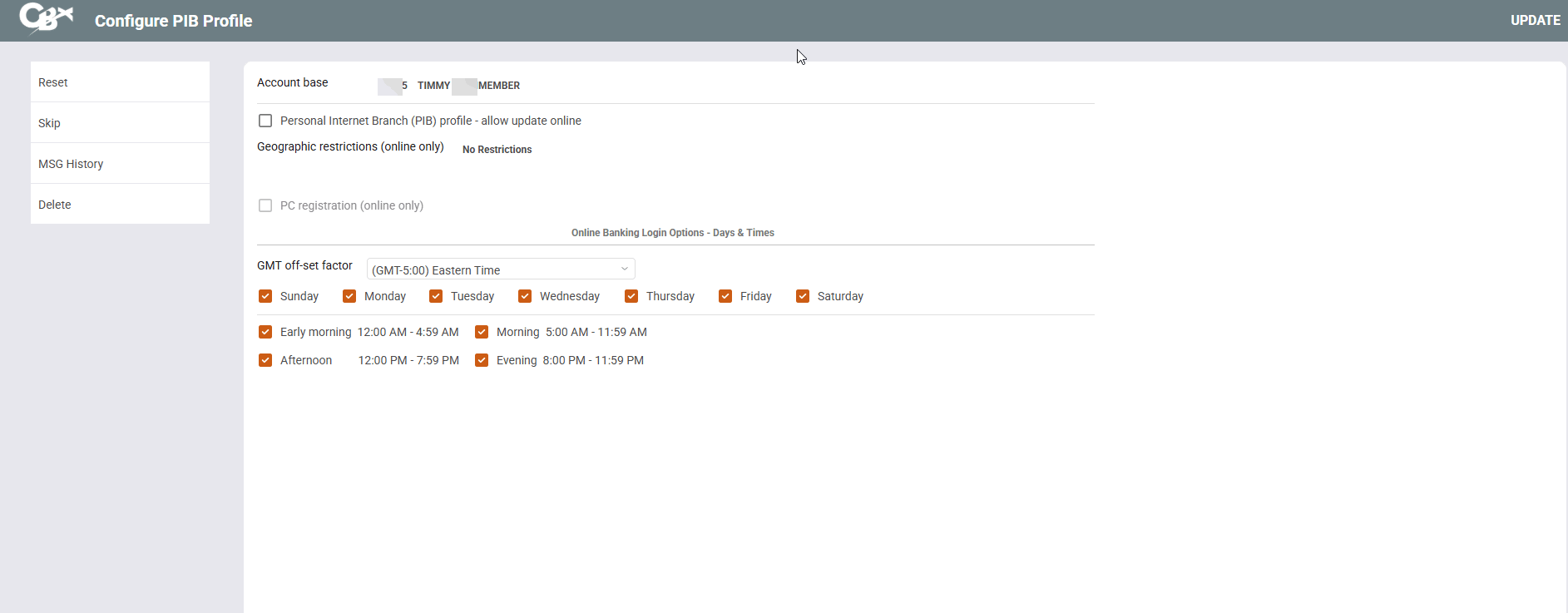
This screen appears after selecting “Personal Internet Branch (enroll or change PIB settings)” on the initial Member Personal Banker screen.. An inquiry-only version of the screen will also appear after clicking PIB on the Online Banking Usage Inquiry window. NOTE: In both cases, a window will appear first showing the member's email address; press Enter to proceed to these configuration screens.
Screen Overview
This screen is used to view or modify a member's Personal Internet Branch (PIB) Profile. This Profile controls how online banking will behave for this member, including additional security controls such as confirmation codes for certain types of transactions, and more.
This is also an access point to the Message Center History screen that lists all messages the member can see in their Message Center in online banking. Click MSG History. On this screen you can also view a history of PIB-related messages sent to the member including security alerts as well as notifications of changes to the member's PIB Profile.
Click the forward arrow (Enter) to move to the second PIB screen.
Related Resources
Learn how to complete tasks related to the Personal Internet Branch (PIB).
Logging in to Online Banking for the First Time (yes username, yes PIB) (member video)
View more member-facing online banking videos!
Logging in to Online Banking for the First Time (no username, yes PIB)