Chargeback Dashboard
| Screen ID: | ICHGBKDB-01 | 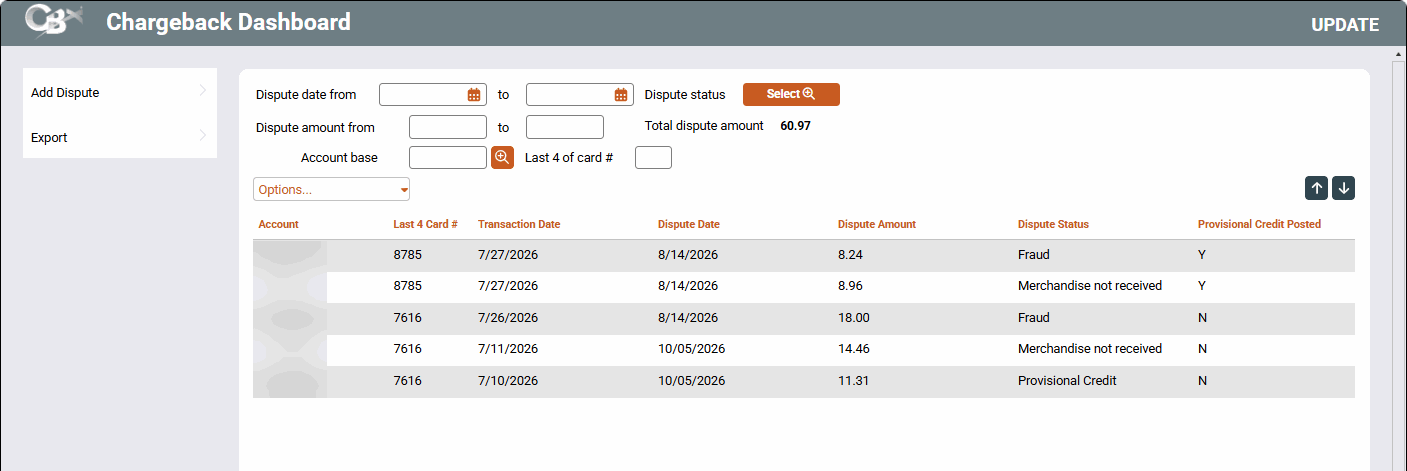
|
| Screen Title: | Chargeback Dashboard | |
| Tool Number: | 1066 | |
| View full-size screen |
Access this screen by selecting Tool #1066 Chargeback Dashboard from the CBX home page. A view-only version is available from Tool #1067 View Chargeback Dashboard
Screen Overview
This dashboard is a tool for your credit union to track and monitor status changes for chargeback incidents with your members.
What is a Chargeback?
A chargeback is the process to reverse a debit or credit card transaction on behalf of our member and recover the funds from the merchant’s bank. It starts when a member contacts the credit union to dispute a charge on their card, for example because they didn’t authorize it, were charged the wrong amount, were charged twice, or never received what they paid for.
When a member reports a dispute, credit unions review the details to determine whether the transaction qualifies for a chargeback. If it does, the CU submits the chargeback through the card network (such as Visa, Mastercard, or a PIN-debit network) under the reason code that best describes the problem. These reason codes generally fall into one of four broad buckets: fraud (the member didn’t authorize it), authorization problems (the merchant didn’t get proper approval), processing errors (duplicate charge, wrong amount, late presentment), and consumer disputes (goods not received, not as described, canceled recurring charge, credit not processed). The reason code determines the filing deadline, what documentation is needed, and what the merchant can argue back. Filing windows are commonly 120 days from the transaction or expected delivery date for most codes, with some exceptions, though you should confirm current Visa and Mastercard rules with your processor because these get revised. The merchant then has the opportunity to accept the chargeback or contest it by providing evidence, which may lead to additional review stages before a final outcome is reached.
Tool #1068 Chargeback Dispute Status Configuration is where you will configure the status codes for your dashboard; these do not have to match the network reason codes. These codes must be configured before using the Chargeback Dashboard.
A chargeback is different from a refund. A refund is issued voluntarily by the merchant, usually after the member contacts them directly. A chargeback is a formal claim filed with the merchant’s bank under card network rules when the issue can’t be, or hasn’t been, resolved with the merchant.
Why Track a Chargeback in CBX?
It’s helpful to think of every chargeback as having two sides. The first is the relationship with the member: once a member reports a dispute, CUs have obligations under federal regulations (Regulation E for debit cards and Regulation Z for credit cards), including investigation timelines and, in many cases, provisional credit to the member’s account. The second is the claim against the merchant’s bank, which follows card network rules and deadlines, filed with the networks. Obligations to the member apply regardless of who ultimately wins the chargeback, which is why tracking both sides is essential.
Adding a Dispute
To add a dispute record, use the Add Dispute button. This will bring you to the member account lookup screen, where you can search by account base, card number, or use the global search. Once you've found your member, you will use the card selection screen to select the plastic. You will be presented with the member's transaction history for that plastic, where you will choose the transaction in question.
Using the Dashboard
Once disputes have been added, you can use the dashboard to track and monitor member disputes. You are able to see information about the member, transaction, status, and whether or not a provisional credit has been posted. You can also use the sort functions to narrow down your dashboard results.
The Total dispute amount will change based on your dashboard selections. Clear any search criteria to see the full total dispute amount.
|
Option |
Description |
|---|---|
|
Use this option to maintain the dispute record, including updating the member's dispute status. |
|
| Delete | Use this option to delete a dispute. |
| View | Use this option to view the dispute, without making changes. |
| Notes | Use this option to review any member notes on this dispute. |
| Trans History | Use this option to jump to the member's transaction history for this account. |
| Create Tracker Note | Use this option to enter a Tracker for this account. |